# User Interface Overview
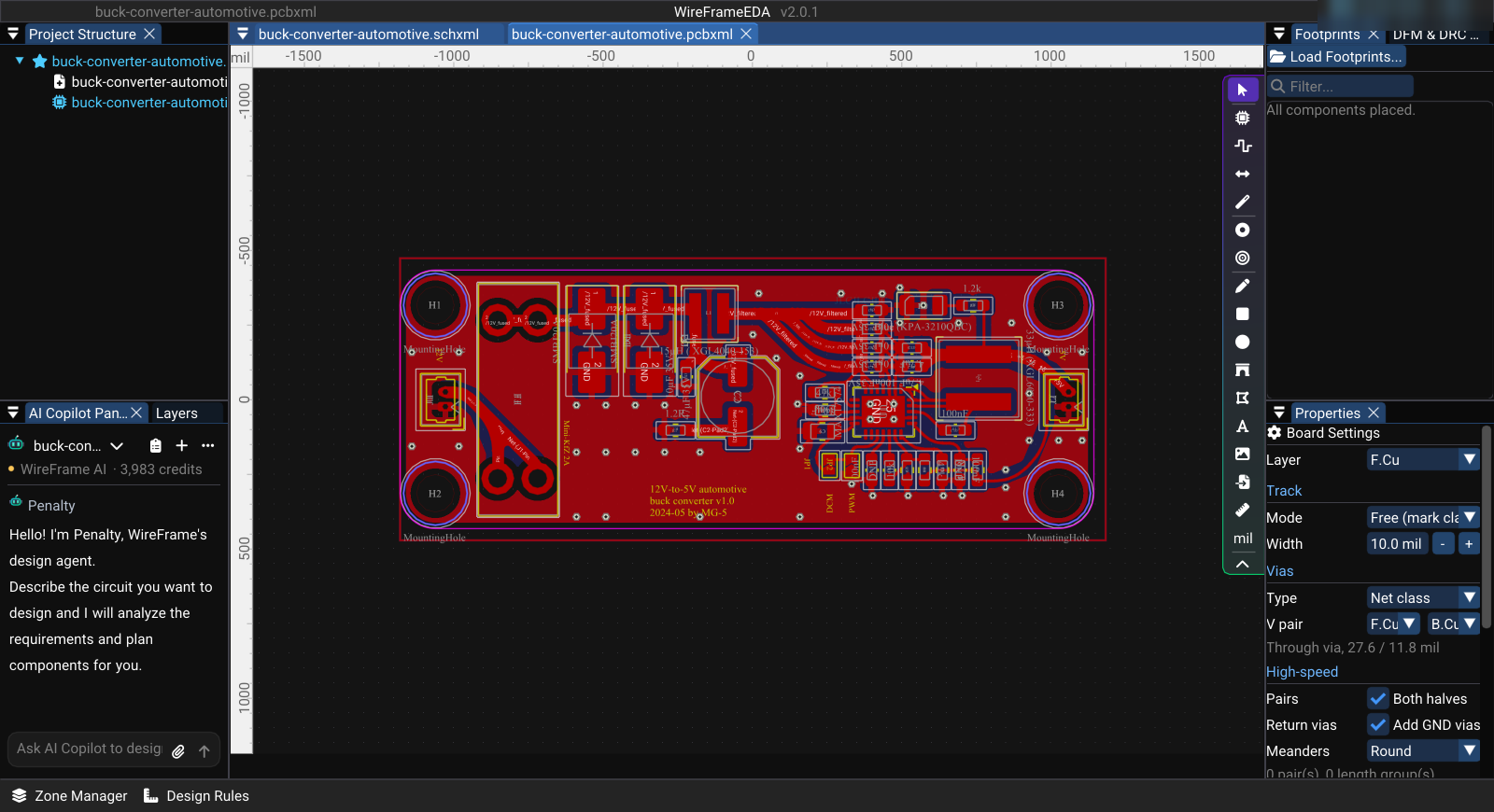
WireFrame uses dockable panels around the active schematic or PCB editor. Available tools and panels change with the active document type.
### Image — Main window
## Main menus
### File
Use **File** to:
- **New** — **New Project (.prjxml)...**, **New Assembly (.asmxml)...**, **New Schematic (.schxml)** (++ctrl+n++), **New PCB (.pcbxml)**, **New Simulation (.simxml)**;
- **Open File...** (++ctrl+o++), **Open Project (.prjxml)...** (++ctrl+p++) and **Open Assembly (.asmxml)...**;
- **Import** — **KiCad Project (.kicad_pro, .pro)...**, **Altium Project (.PrjPcb, .SchDoc, .PcbDoc, .zip)...** and, with a PCB active, **CAD Outline (.svg / .dxf)...** — see [Import and Export](import-export.md);
- **Save** (++ctrl+s++) and **Save As...** (++ctrl+shift+s++);
- **Export** — **Export Schematic to PDF...**, **Print PCB to PDF (1:1)...**, **Fabrication Outputs (Gerber/Drill/BOM)...**, **KiCad Project...**, **Altium Designer Project...**, **EasyEDA Project (Standard)...**;
- **Page Settings...** for the active schematic;
- **Close Document**, **Close Project**, **Close Assembly**, and **Exit**.
Commands that do not apply to the active document are disabled.
### Edit
Use **Edit** for **Undo**, **Redo**, **Cut**, **Copy**, **Paste**, and **Delete** in the active editor. The shortcuts shown follow your key bindings.
### View
Use **View** to show or hide:
- Project Structure;
- Editor Panel;
- Component Library;
- Properties;
- Local Library Manager;
- AI Copilot Chat;
- PCB Layers;
- Zone Manager — see [Zone Manager](pcb/zones-and-planes.md#zone-manager);
- Design Rules — see [Design Rules](pcb/design-rules.md);
- High-Speed Workbench — see [High-Speed Workbench](high-speed/index.md);
- Power Analyzer (DC IR drop) — see [Power Analyzer](power/power-analyzer.md);
- 3D Viewer (++3++);
- Assembly View — see [Multi-Board Products](advanced/multi-board.md);
- **Schematic | PCB | 3D** and **Views as Tabs** — see [Side by Side](advanced/side-by-side-views.md);
- Performance HUD — a frame-time overlay; see the FAQ entry *The canvas feels slow or stutters* under [Schematic and PCB](faq.md#schematic-and-pcb).
### Tools
Use **Tools** for **Symbol Library Editor**, **PCB Footprint Editor**, **Auto Wire**, **Update Schematic to PCB** (a submenu when the project has several PCBs), **Electrical Rules Check (ERC)**, **DFM & DRC Check Panel...**, **Fabrication Output...**, and **Gerber Viewer...**. Commands that do not apply to the active document are disabled.
### Simulation
Use **Simulation** for **New Simulation (.simxml)**, **Simulate a Block of This Sheet...**, the **SPICE Simulation Panel**, **Pre-flight Validation Checklist**, and **SPICE Model Editor**. A simulation is a file of its own; sheets of the design are not simulated — see [Get a simulation](simulation/index.md#get-a-simulation).
### Preferences
**Preferences...** (++ctrl+comma++) opens the Preferences dialog — see [the categories below](#current-preferences-categories). Use **Reset to Default Layout** only when you intend to discard the saved docking layout.
### Help and account
The **Help** menu has **Documentation** (this guide), **Report a Bug...**, **Request a Feature...** (see [Reporting an issue](faq.md#reporting-an-issue)), **Download Latest Version** — or **Update to v…** when a newer version exists — and **About WireFrame EDA**.
The account menu at the right end of the menu bar shows who is signed in and the plan. It offers **Sign in with browser** (or **Manage account, plan & devices** and **Sign out of this device** once signed in), **Star repository**, **Donate / Buy me a coffee** and **Check for Updates**. See [Account, Plans and Devices](reference/accounts-and-plans.md).
### Light and dark
**Preferences → Appearance** switches the whole app between **Dark** and **Light** — a soft-grey light theme with colours deepened to stay readable — and sets the accent colour, the interface font and its size. The schematic canvas has its own **Auto / Paper / Dark** choice: Auto follows the theme, Paper is a white sheet, Dark is the classic dark sheet.
## Docking layout
Drag a panel by its title to dock it to another edge or tab group. Preferences can enable detachable multi-monitor panels and companion-panel behavior.
### Short video — Rearrange and restore panels
## Project Structure
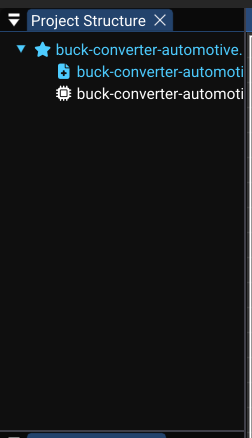
The Project Structure panel lists the open projects with their schematics and PCBs. Standalone files appear separately. Click a file to open it; ++shift++ / ++ctrl++ (++cmd++ on macOS) select several.
Right-click the **project** for **Add New Schematic**, **Add New PCB**, **Rename Project**, **Open in Explorer**, and **Close Project**. Right-click a **file** for:
| Item | What it does |
|---|---|
| **Open**, **Reload** | Open it, or read it again from disk |
| **Rename**, **Open in Explorer** | Rename the file, or show it in the system file manager |
| **Set Root Schematic ▸** *(PCB only)* | Choose which schematic sheet this board is built from, or **None (Clear Mapping)** |
| **Exclude from Project** / **Un-Exclude from Project** | Keep the file listed but leave it out of the project's design |
| **Remove from List** | Take the file out of the project; the file stays on disk |
| **Delete...** | Delete the file from disk after a confirmation. **This cannot be undone**; open tabs of the file close and unsaved changes are lost. ++delete++ does the same for the selected files |
### Image — Current Project Structure
## Editor panel
The center editor displays the active schematic or PCB. Common actions include:
- mouse wheel to zoom;
- middle-drag or the configured pan action to move the view;
- click or box selection;
- context menu for object-specific actions;
- shortcuts shown in the active key map.
Toolbars change when switching between schematic and PCB documents.
## Component Library
With a **schematic** active, the **Library** panel has two tabs:
- **Local Library** — symbols from your library sources. **Filter...** searches, **Hide Power/Logo** hides power symbols and logos, and **Manage libraries...** opens the Library Manager. Drag a symbol onto the sheet to place it.
- **Online Store** — WireFrame's online component catalog. **Install** downloads a part with its symbol, footprint, and 3D model; **Drag to schematic** places an installed part.
With a **PCB** active, the panel becomes **Footprints**: the design's footprints that are not on the board yet, a **Filter...** box, and **Load Footprints...** to add a `.kicad_mod` file. Drag a row onto the board to place it.
Use **View → Local Library Manager** to add or remove library sources — see [Library Import and Management](libraries/library-converter.md).
## Properties
Properties follow the current selection:
- a **library symbol** selected in the Library panel shows a preview with **Symbol**, **Footprint**, and **3D Model** tabs;
- a **schematic component** shows **Component Properties** with **General**, **3D Model**, and **Pins** tabs;
- **empty schematic canvas** shows **Document Settings** (title block);
- a **PCB footprint** shows **Footprint Properties** — reference, value, position, rotation, **Flip Layer (F)**;
- **traces, vias, holes, and graphics** show their own settings;
- **nothing selected on a PCB** shows **Board Settings** — active layer, track width, via type, high-speed options, corner style, and the rules of the active net.
**Ctrl+E** brings the Properties panel back if it is hidden.
## PCB Layers
The **Layers** panel sets the copper stackup, the active layer, and each layer's visibility, lock, and colour. Hiding a layer changes the view, not the board data. Confirm the active copper layer before routing or adding vias — see [Layers and Views](pcb/layers-and-views.md).
## Notifications and logs
Status messages and notification overlays report saves, imports, checks, and failures. Read the full message before repeating an action. For simulation, also inspect **Last run** and the simulation log.
### Short video — Notification and status feedback
## Current Preferences categories
| Category | Includes |
|---|---|
| **General** | Display units (**Mil** / **Millimeter**), autosave and its interval |
| **Appearance** | Theme mode (dark / light), accent colour, interface font, font file, and font size |
| **Workspace** | **Detachable panels** (drag panels onto another monitor), **Companion panels follow their editor**, **Default layout**, **Restore on launch**, **Layout presets** |
| **Grid & Snap** | **Show grid**, **Crosshair at cursor**, **Snap to grid** (hold ++alt++ to place off-grid), **Grid step** |
| **Editing** | **Rotate step** for both editors; **Default trace width (mil)** for new boards |
| **Keyboard Shortcuts** | Key bindings — see [Keyboard Shortcuts](advanced/shortcuts.md) |
| **Simulation** | **Default analysis**, **Transient defaults** (stop time, time step), **Engines** (ngspice is built in; Xyce, LTspice, and an external ngspice are optional) |
| **Libraries** | Library Manager, online catalog, loaded sources, and the library cache folder |
| **3D Viewer** | Materials of the 3D board preview: solder mask, trace under mask, pad plating, silkscreen |
| **AI Assistant** | WireFrame AI and your plan's AI credit left — see [AI Copilot](ai/index.md#configure-ai-access) |
| **Updates** | Version, licence tier, and the update check |
A search box at the top finds settings by keyword.
Select **OK** to keep changes or **Cancel** to discard pending dialog changes.
## See also
- [Getting Started](getting-started.md)
- [Keyboard Shortcuts](advanced/shortcuts.md)
- [Configuration and Session Storage](reference/config-and-session.md)