3D, mechanics & products
Keyboard Shortcuts and Key Map
On this page
WireFrame lets you change the shortcut of every action. The tables below list the default bindings that do something in the current build. If you have changed a binding, the menus and toolbar tooltips show your binding instead.
One key, several meanings
The same letter can mean different things in the schematic and the PCB editor — O is Draw Polygon on a schematic but Place Footprint on a board. A shortcut only acts in the editor of the active document.
Change a shortcut#
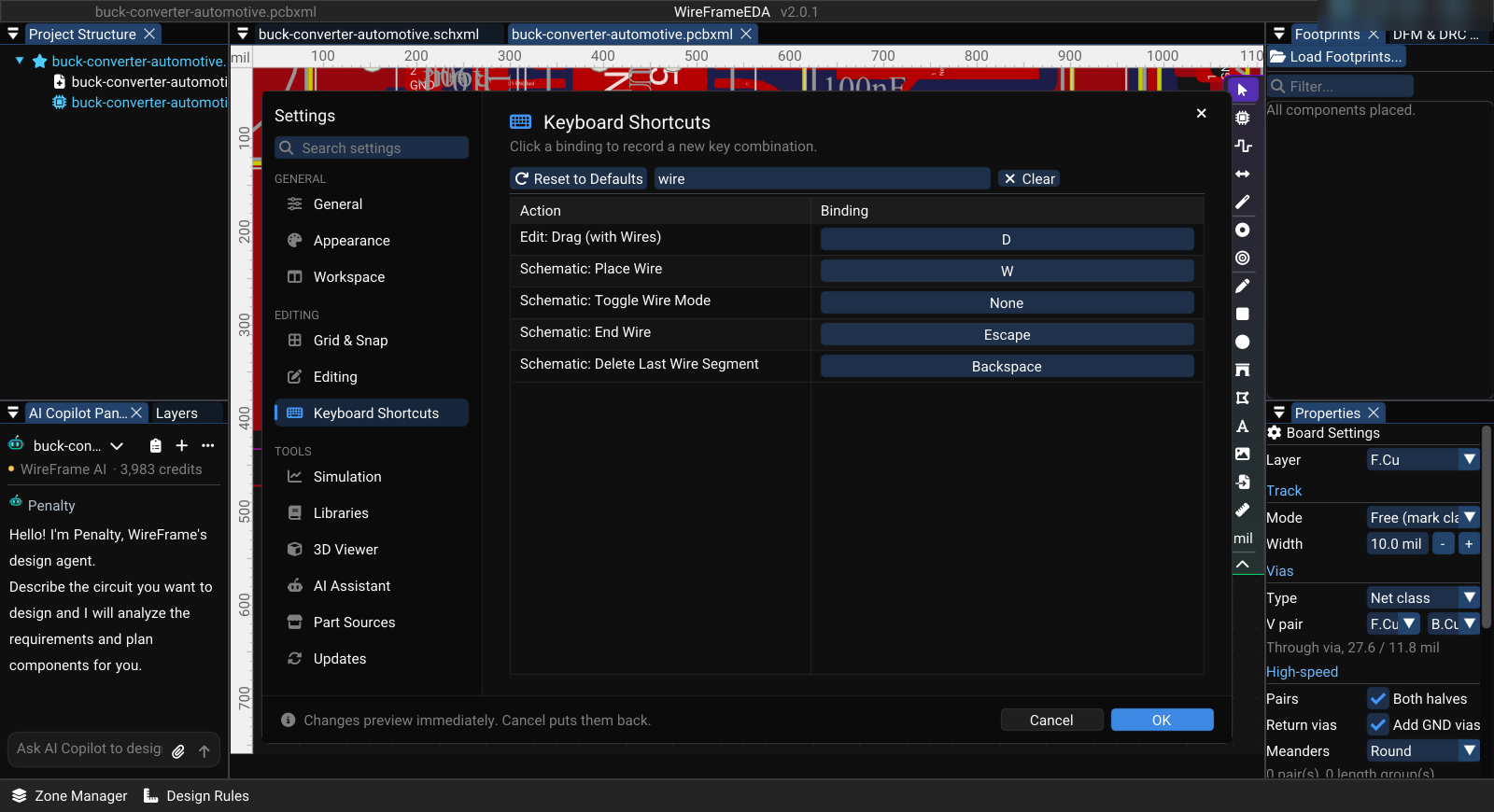
- Open Preferences → Preferences... (Ctrl+,) and select Keyboard Shortcuts.
- Type in Search action or binding to find an action, or scroll the Action / Binding table. Actions are named by area, for example
Schematic: Place WireorPCB: Measure. - Click the binding of the action. The button reads [ Press keys... ].
- Press the new key combination, then:
- Enter confirms it;
- Esc cancels;
- Del or Backspace clears the binding.
- Select OK to keep the change.
A binding that is already used by another action in the same editor turns amber. Hover it to see Warning: This keybinding conflicts with: …. The other action keeps its binding — change one of the two. Reset to Defaults restores every binding.
Bindings are saved in the user configuration and restored on the next launch.
Mouse#
| Action | Input |
|---|---|
| Pan | Middle-drag, or right-drag |
| Zoom at the cursor | Mouse wheel (Windows, Linux); Ctrl + wheel on every platform |
| Pan on a trackpad (macOS) | Two-finger scroll; zoom with pinch or Cmd + scroll |
| Select | Click; drag on empty canvas for a box selection |
| Context menu | Right-click an object |
Global#
| Action | Default | Notes |
|---|---|---|
| New schematic | Ctrl+N | Opens a new, unsaved schematic tab |
| Open file | Ctrl+O | .schxml or .pcbxml |
| Open project | Ctrl+P | .prjxml |
| Save | Ctrl+S | |
| Save As | Ctrl+Shift+S | |
| Preferences | Ctrl+, | |
| Undo / Redo | Ctrl+Z / Ctrl+Y | Per document |
| Cut / Copy / Paste | Ctrl+X / Ctrl+C / Ctrl+V | |
| Delete | Del or Backspace | |
| Show Properties panel | Ctrl+E | |
| Show / hide AI Copilot | Ctrl+Space | |
| Toggle unit mm / mil | Shift+U | |
| Toggle grid | Shift+G | |
| Toggle crosshair | Shift+C | |
| Zoom 100% | Ctrl+0 | |
| Rotate selection | Space | Step set in Preferences → Editing (90° by default) |
| Show / hide the floating toolbar | Tab | In the PCB editor Tab also switches the active copper layer — see below |
| Cancel the current tool | Esc | Returns to Select |
Shortcuts shown in the File menu
The File menu prints Ctrl+P beside Page Settings..., Ctrl+E beside Fabrication Outputs, and Ctrl+W beside Close Document. In this build those keys do what the table above says (open a project, show Properties) or nothing (Ctrl+W). Use the menu items themselves.
Schematic editor#
| Action | Default | Notes |
|---|---|---|
| Fit to screen | Home | |
| Zoom to selection | Ctrl+Shift+F | |
| Rotate selection | Space, or R while something is selected | With nothing selected, R is Draw Rectangle |
| Nudge selection | Arrow keys | 5 px per press |
| Align selected components / text horizontally | Shift+Y | |
| Align selected components / text vertically | Shift+X | |
| Wire | W | Space while drawing flips which way the first bend goes |
| Net label | N | |
| Power port (VCC) | P | |
| GND | G | |
| Junction | J | |
| Net harness | H | |
| Text | T | |
| Line | Shift+L | |
| Rectangle | R | |
| Circle | E | |
| Arc | A | |
| Polygon | O | |
| Probe signal (simulation) | V | |
| Run simulation | F5 | Opens the SPICE Simulation Panel and runs the current setup |
PCB editor#
| Action | Default | Notes |
|---|---|---|
| Place footprint | O | |
| Route trace | X | |
| Place via | V | While routing, V drops a via instead |
| Place mounting hole | H | |
| Measure | M | |
| Line / Rectangle / Circle / Arc | Shift+L / R / E / A | |
| Text | T | |
| Rotate selection | Space | |
| Flip footprint to the other side | F | |
| Nudge selection | Arrow keys | 5 mil per press |
| Align selected designators or footprints | Shift+Y / Shift+X | Several selected designators are aligned first; otherwise the selected footprints |
| Trace width down / up | [ / ] | While routing: 1 mil per press, kept within the net class minimum and maximum. The next route starts again at the class width |
| Switch active copper layer | Tab | To its via pair (F.Cu ↔ B.Cu by default). While routing, Tab, V, or Space drops a via and continues on the other layer |
| Next / previous copper layer | = / - | While routing (also keypad Num + / Num -) it drops a via to that layer |
| Top layer / bottom layer | Page Up / Page Down | While routing it drops a via to F.Cu / B.Cu |
| Via to a chosen layer | Shift+V | Opens the layer picker |
| Show / hide 3D Viewer | 3 |
3D Viewer#
| Action | Default |
|---|---|
| Reset camera | Home |
Customization tips#
Match your workflow
Coming from KiCad, Altium, or Eagle, you can rebind WireFrame's shortcuts to match. Search for the action in Preferences → Keyboard Shortcuts and record your preferred key.
See Also#
- Selection & Editing — keyboard operations for selection and clipboard.
- Schematic Editor — schematic-specific tool modes.
- PCB Editor — PCB-specific tool modes.