Libraries
Library Workspace
The Library Workspace is where a library is edited. The Library Manager only previews; editing one library — its parts, their symbols, land patterns and 3D models — happens in this centre tab, with the Project and AI Copilot panels beside it.
Open it#
- Open View → Local Library Manager.
- Select a library in the source list.
- Select ✎ Edit, or double-click a part to open the workspace focused on it.
The Library Manager closes and the workspace opens as a tab next to your sheets and boards.
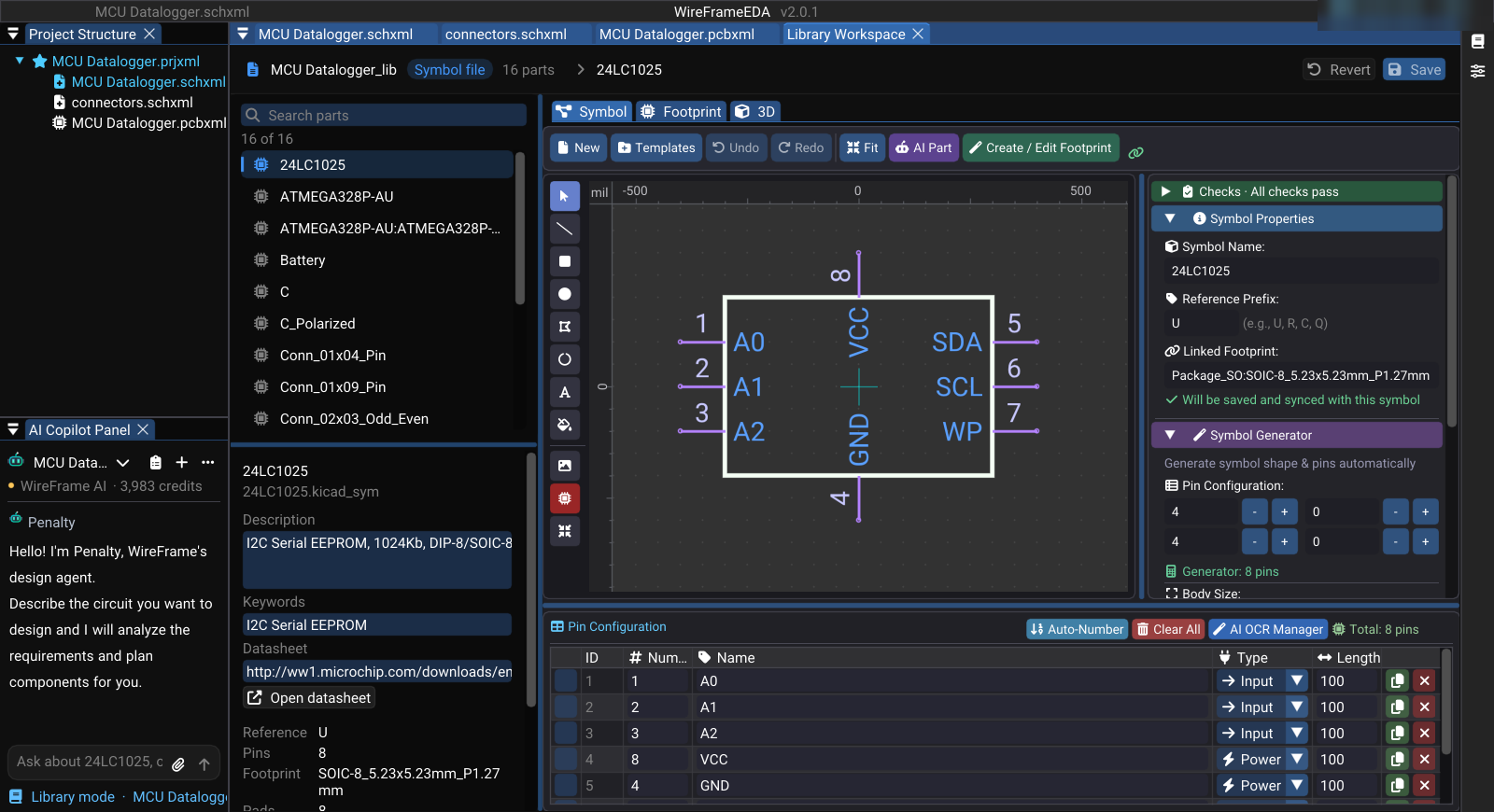
What is on screen#
| Area | What it holds |
|---|---|
| Parts | Every part of the library, with search and multi-select. A selection is what the Copilot's selected means |
| The part | Name, reference prefix, description, datasheet, footprint, 3D model, and the result of the part's checks |
| Symbol / Footprint / 3D | The symbol and footprint editors, embedded, and the 3D model on the land pattern |
Saving#
- A KiCad folder or
.kicad_symfile is written in place, in KiCad's format, so KiCad can still open it. - An imported library (Altium, the online catalog) is a converted copy that cannot be written back to its original format. Save asks where the part goes — by default a KiCad library of yours — and the imported copy stays untouched.
- What is written keeps everything the editors do not show: hidden pins, units and every property of the part are merged back, not dropped.
Working with the Copilot#
While the workspace is in front, the AI Copilot works on library parts and / offers the library commands. Each runs on the open part, on the parts selected in the list (selected), or on the whole library (all), and writes into the embedded editors while it works — a LIVE band says what it is doing ("Placing pin 7 of 16…").
| Command | Use it to |
|---|---|
/review |
Audit everything that needs no model: pins on pads, shorts, layers, 3D model, description, datasheet |
/check-physics |
Check the land pattern as copper: pin to pad by number, pads that short, measured pad geometry |
/check-template |
Compare the land pattern with the standard drawing of the package it names |
/describe |
Write descriptions and search keywords (a batch only fills empty ones) |
/deepsearch |
Find datasheets — WireFrame downloads each link and writes only those that downloaded |
/deepthink |
Read a datasheet pin by pin, citing a page for each, and compare it with the symbol |
/contract |
Record what the part needs electrically, for every board that uses it |
/edit, /symbol, /footprint |
Change the open part from a sentence, live in the editors |
/stop |
Stop a running batch; what is done stays done |
A batch over all is the quickest way to bring an inherited library up to standard: /review all first (free), then /describe all and /deepsearch all for the parts that need them.