Agents & MCP New
Connect Claude, Codex, Cursor or another agent
On this page
Your agent reaches WireFrame through a small program that comes with it, wf-mcp-server. The agent starts it, and it passes every request to the WireFrame you have open. There is no key to paste and no server to run: the bridge uses the account WireFrame is signed in to.
Before you start:
- WireFrame 2.0.1 or later. Earlier releases have no MCP server. This guide describes 2.0.3, where your agent takes command of the design and only the calls that change it are counted; 2.0.1 and 2.0.2 offer fourteen tools and count every call.
- Signed in, on Pro or Max. MCP is not in Free.
- WireFrame open, with the project open. For the board tools, the board's tab should be the one in front.
Claude Desktop in five steps#
Follow them in this order:
- Install the extension. Get the
.mcpbfile from the download page, then double-click it or drag it onto the Claude Desktop window. - Open WireFrame, and sign in.
- Turn the extension on in Claude. In Settings → Extensions → WireFrame EDA, switch on Enabled.
- Create your project, or open an existing one — or let Claude do it: it can open a project, start a new one and switch between them. It works on the one that is active.
- Press Allow on the card in WireFrame's AI panel. Nothing runs until you do, and each new connection asks again.
WireFrame has to be open before step 3: the extension looks for it once, when it starts. If you turned the extension on first, open WireFrame, then quit Claude Desktop completely and open it again.
Using another agent, or the config file instead of the extension? The sections below have the exact setup for each.
Find the bridge#
It is installed beside WireFrame itself:
| System | Where it is |
|---|---|
| Windows | wf-mcp-server.exe, in the WireFrame installation folder, next to WireFrame.exe. Right-click WireFrame in the Start menu → Open file location to find the folder. |
| macOS | /Applications/WireFrameEDA.app/Contents/MacOS/wf-mcp-server |
| Linux | /usr/bin/wf-mcp-server — on your PATH, so wf-mcp-server alone works |
Every example below uses the Linux path. Put yours in its place.
Claude Desktop#
Open Settings → Developer → Edit Config, or open the file directly:
| System | Claude Desktop's config file |
|---|---|
| macOS | ~/Library/Application Support/Claude/claude_desktop_config.json |
| Windows | %APPDATA%\Claude\claude_desktop_config.json |
Add WireFrame under mcpServers — keep any servers already there:
{
  "mcpServers": {
    "wireframe": {
      "command": "/Applications/WireFrameEDA.app/Contents/MacOS/wf-mcp-server"
    }
  }
}
On Windows, write the path with doubled backslashes: "C:\\…\\WireFrame\\wf-mcp-server.exe". Quit Claude Desktop completely and open it again; WireFrame appears among its connectors with 33 tools. Open WireFrame first: started without it, the bridge connects, offers no tools, and says why — and it does not look again until Claude Desktop restarts it.
Or install it as an extension#
WireFrame also comes as a Claude Desktop extension — one .mcpb file holding the bridge, WireFrame's icon and the list of tools. Get it from the download page, below the three installers. Then double-click it, drag it onto the Claude Desktop window, or use Settings → Extensions → Advanced settings → Install Extension…. Nothing to edit, and WireFrame shows with its own icon.
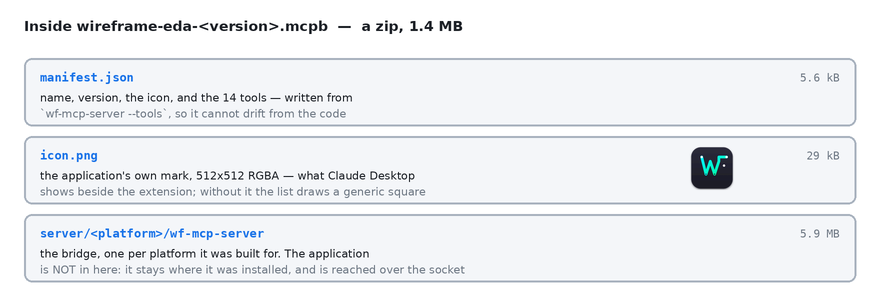
The extension carries the bridge only. WireFrame itself must still be installed and open; the extension finds it the same way the config file does.
Claude Code#
One command, for every project on this machine:
claude mcp add --scope user wireframe -- /usr/bin/wf-mcp-server
Use --scope project instead to write it into the repository's .mcp.json, so everyone who opens the project gets it. Inside Claude Code, /mcp shows whether WireFrame is connected and lists its tools.
Codex#
codex mcp add wireframe -- /usr/bin/wf-mcp-server
Or add it to ~/.codex/config.toml yourself — the Codex CLI and the Codex IDE extension both read it:
[mcp_servers.wireframe]
command = "/usr/bin/wf-mcp-server"
codex mcp --help lists the commands that show and remove it.
Cursor#
In ~/.cursor/mcp.json for every project, or .cursor/mcp.json in one project:
{
  "mcpServers": {
    "wireframe": {
      "type": "stdio",
      "command": "/usr/bin/wf-mcp-server"
    }
  }
}
VS Code#
In .vscode/mcp.json in the workspace. VS Code calls the list servers, not mcpServers — with the wrong key the entry is ignored without a word:
{
  "servers": {
    "wireframe": {
      "type": "stdio",
      "command": "/usr/bin/wf-mcp-server"
    }
  }
}
Any other MCP client#
WireFrame's bridge is an ordinary stdio MCP server. Give your client:
- command: the path to
wf-mcp-server - arguments: none
- environment: none — no API key, no token
It speaks MCP protocol versions 2025-06-18, 2025-03-26 and 2024-11-05, answering in the one your client asks for.
Allow it in WireFrame#
The first time your agent calls a tool, WireFrame's AI panel shows a card: "claude-ai wants to take command of this design over MCP" — it decides the parts, the wiring and the layout, edits the schematic and the board, and directs WireFrame's own agent — with Allow and Decline. Nothing runs until you press Allow — your agent is told it is waiting, and those calls are not counted. The permission lasts until the agent disconnects; the next connection asks again. Once allowed, one line in the panel says which agent is in command, with Revoke to take it back.
Check that it works#
Press Allow in WireFrame, then ask your agent: "Is WireFrame busy?" It calls is_busy and answers that the agent is idle — WireFrame is connected. Then ask what it can do on the open board: it lists the design tools with list_design_tools, or reads them from wireframe://tools, and neither costs a call. Before it designs anything, have it read the guide start_here with read_guide, which is free too.
When it does not connect#
The agent reports WireFrame's own words. Here is what each one means:
| The agent says | Why | What to do |
|---|---|---|
| "WireFrame is not running, or has no project open…" | The bridge started, but no WireFrame was listening. | Start WireFrame, open the project, then reconnect — in Claude Desktop, restart it; in Claude Code, /mcp. |
| "WireFrame is waiting for the person to allow this client…" | Nobody has pressed Allow yet. | Open WireFrame's AI panel and press Allow on the card. |
| "The person declined this client in WireFrame…" | Decline or Revoke was pressed. | Press Allow on the line in the AI panel, or reconnect. |
| "another MCP client is already connected to this WireFrame" | One client at a time. | Close the other agent, or disconnect WireFrame there. |
| "No PCB is open." | The project has no board yet, or it could not be opened. | Run update_pcb first, or open the board in WireFrame. |
| "The agent is still working on the last request…" | A turn is running; a second one, or a change, would land in the middle of it. Not counted. | Poll is_busy, then read_transcript; or call stop. |
| "Job … is still running, so nothing was sent…" | A long design tool is running as a job; a second one, or a change, would race it on the same board. Not counted. Reads keep working. | Call job_status for its answer, or stop. |
| "… is not one of the design tools this project offers" | call_tool reaches only the tools list_design_tools lists for the open project. |
Read the list and pick a tool from it. |
| "MCP is not included in this plan. Pro and Max include it." | The account is on Free. | See the plans. |
| "This account's MCP allowance is spent…" | Pro's 500 calls this month are used. | Wait for the monthly reset, or add an MCP pack. |
| "This build of WireFrame is older than the release MCP ships in…" | WireFrame is older than 2.0.1. | Update WireFrame. |
| "Nobody is signed in to WireFrame…" | Calls cannot be counted without an account. | Sign in from WireFrame's account menu. |
| "The account server could not be reached…" | WireFrame is offline. | Check the connection; the call was not counted. |
| "Too many MCP calls just now…" | A burst over the fair-use rate. | Wait a minute. |
Every refusal in this table costs nothing, with one exception: "No PCB is open." is the answer of a tool that ran and looked, so it counts when the tool called is one that counts (a change to the design). A call_tool naming a design tool that does not exist is given back: the answer ends "No call was counted." What counts and what does not is on the MCP page.
Next#
- What every tool does
- MCP tool reference — the 33 tools and their parameters
- Copilot commands — what
run_commandcan run