Libraries
Symbol Libraries
On this page
Symbol libraries provide the logical schematic representation of components. Use approved sources and verify every symbol against the exact manufacturer package before placing it in a release design.
Add a symbol source#
- Open View → Local Library Manager.
- Select Add library ▾ → Folder of KiCad libraries... or KiCad symbol file (.kicad_sym)....
- Select the new source and confirm its symbols are listed and ticked (shown in the Library panel).
- Activate a schematic and search for the symbol with Filter... in the Library panel.
For project portability, keep required custom libraries with the project or in a controlled team location.
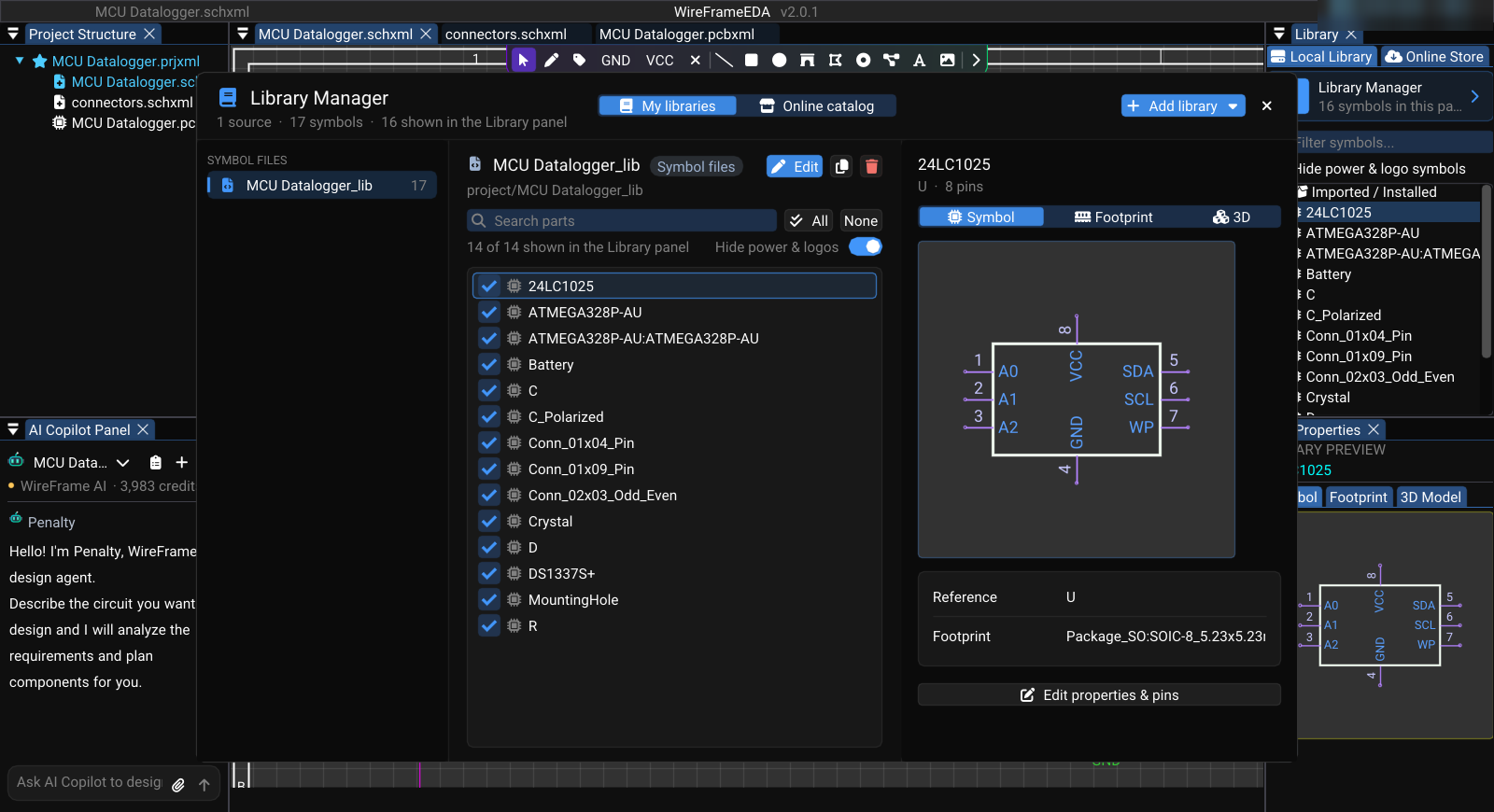
Review a symbol#
Before use, compare it with the exact datasheet:
- part and package variant;
- pin count, number, and signal name;
- electrical type used by ERC;
- visible power and ground pins;
- orientation, units, and readability;
- default value and reference prefix;
- footprint assignment and pin-to-pad mapping.
A readable drawing can still be electrically wrong. Treat pin number and footprint-pad mapping as release-critical data.
Assign a footprint#
Link an approved physical package in one of these places:
- for a placed component: Properties → General → Linked Footprint → Link Footprint & Save to File;
- for the library symbol: Library Manager → Footprint tab → Link a footprint file..., or Edit properties & pins → Default footprint;
- in the Library panel preview (Properties → Footprint tab): Manual Load .kicad_mod, then Link Footprint & Save to File.
Confirm package name, pad count, numbering, pitch, polarity marker, and orientation.
Existing placed instances may not inherit a later library change. Review them individually and update the PCB only after the schematic assignments are correct.
Import an Altium symbol library#
In the Library Manager, select Add library ▾ → Altium library (SchLib, PcbLib, IntLib)... and choose a .SchLib, .IntLib, or .LibPkg file. After conversion, review the imported symbol and its footprint relationship before use.
Eagle library import is not exposed in the current release UI and is intentionally omitted.
Create or generate a missing symbol#
Use Symbol Library Editor for manual creation or correction. When Component Review identifies a missing part, /fix in the AI panel (Fix or Create a Component) can prepare a symbol and footprint from the datasheet, but both assets still require the same datasheet review.