Simulation
Simulation Engines and Models
On this page
WireFrame includes a simulator for everyday use. You can also connect another supported simulator when a project or model requires it.
Choose a simulator#
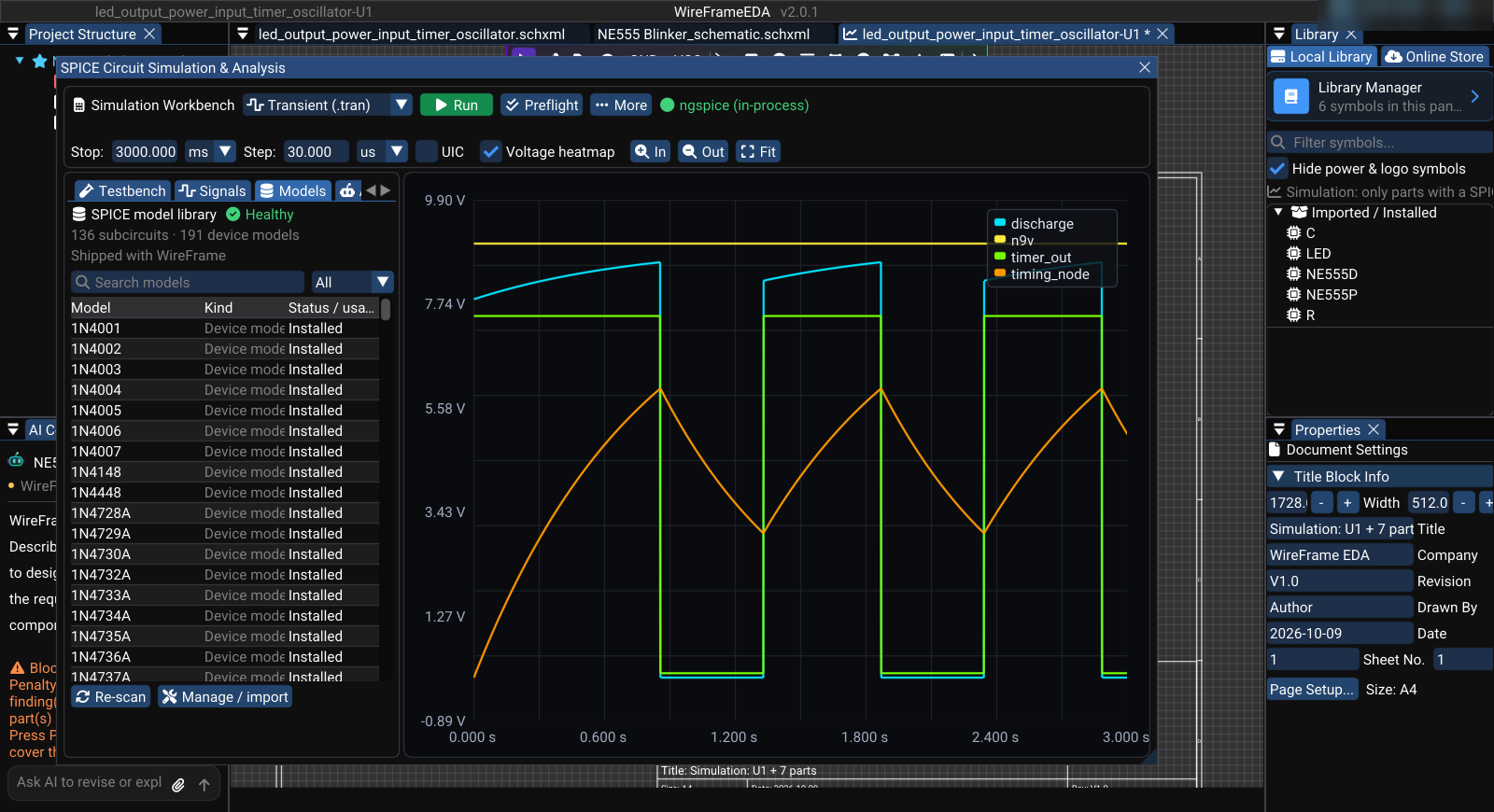
With a simulation open, open the workbench (F5 or Simulation → SPICE Simulation Panel), then go to Setup → Engine.
| Simulator | When to choose it |
|---|---|
| ngspice (in-process) | Recommended for most projects; included with WireFrame and runs inside the application |
| ngspice (CLI) | Use an ngspice installation already available on your computer |
| Xyce | Use when your project has been prepared and validated for Xyce |
| LTspice | Use when you need to compare with an LTspice-compatible model or workflow |
Unavailable simulators remain visible and show why they cannot be used.
Connect an external simulator#
- Install the simulator using its official installer or package.
- Open Preferences → Simulation.
- Find the simulator under Engines.
- Click the folder button (tooltip Browse...) and select its executable file — or leave the path empty (on PATH) to use the one on the system
PATH. - Confirm that its status changes to found.
- Return to the Simulation Workbench and select it under Setup → Engine.
Use the clear button (tooltip Clear (look on PATH)) to remove a custom location and let WireFrame search the system PATH again.
Set your simulation defaults#
Under Preferences → Simulation, you can choose:
- the default analysis;
- the default transient duration;
- the default time step;
- executable locations for optional simulators.
These choices are restored the next time WireFrame starts.
Resolve a missing model#
Some components—especially integrated circuits and transistors—need a simulation model from the manufacturer.
- Open the workbench Models tab.
- Find the item marked Missing.
- Note the component designator and requested model name.
- Download the correct SPICE model from the component manufacturer.
- Select Manage / import in the Models tab (or Simulation → SPICE Model Editor...) to import the model and assign it to the component.
- Run Preflight again.
Match the exact component
A model for a similar part can produce convincing but incorrect results. Confirm the manufacturer part number, model name, pin order, and package against the datasheet.
Before running#
Choose the circuit scope, run preflight, resolve every missing or incompatible model, select the intended simulator, and then run. Repeat preflight whenever you change a model or engine.
Troubleshooting#
| What you see | What to check |
|---|---|
| Not installed | Select the correct executable in Preferences → Simulation |
| Run is disabled | Run Preflight and read the readiness message |
| A model is missing | Confirm the component's assigned model and datasheet |
| No waveform appears | Select a signal, check the analysis, then review the simulation log |
| Two simulators disagree | Confirm both runs use the same sources, loads, model version, and settings |