AI Copilot
Fix or Create a Component
On this page
When the AI design needs a part your libraries do not have — or a part whose symbol or land pattern is wrong — WireFrame repairs it through the AI panel, with the datasheet as evidence, and shows you every change before it is saved. There is no separate generator window: you ask for the fix in the chat, review the plan, and apply it.
A generated or repaired part is a starting point
Compare the result with the exact manufacturer part number, pin table, package drawing and recommended land pattern before you use it on a board you will order.
Find the parts that need work#
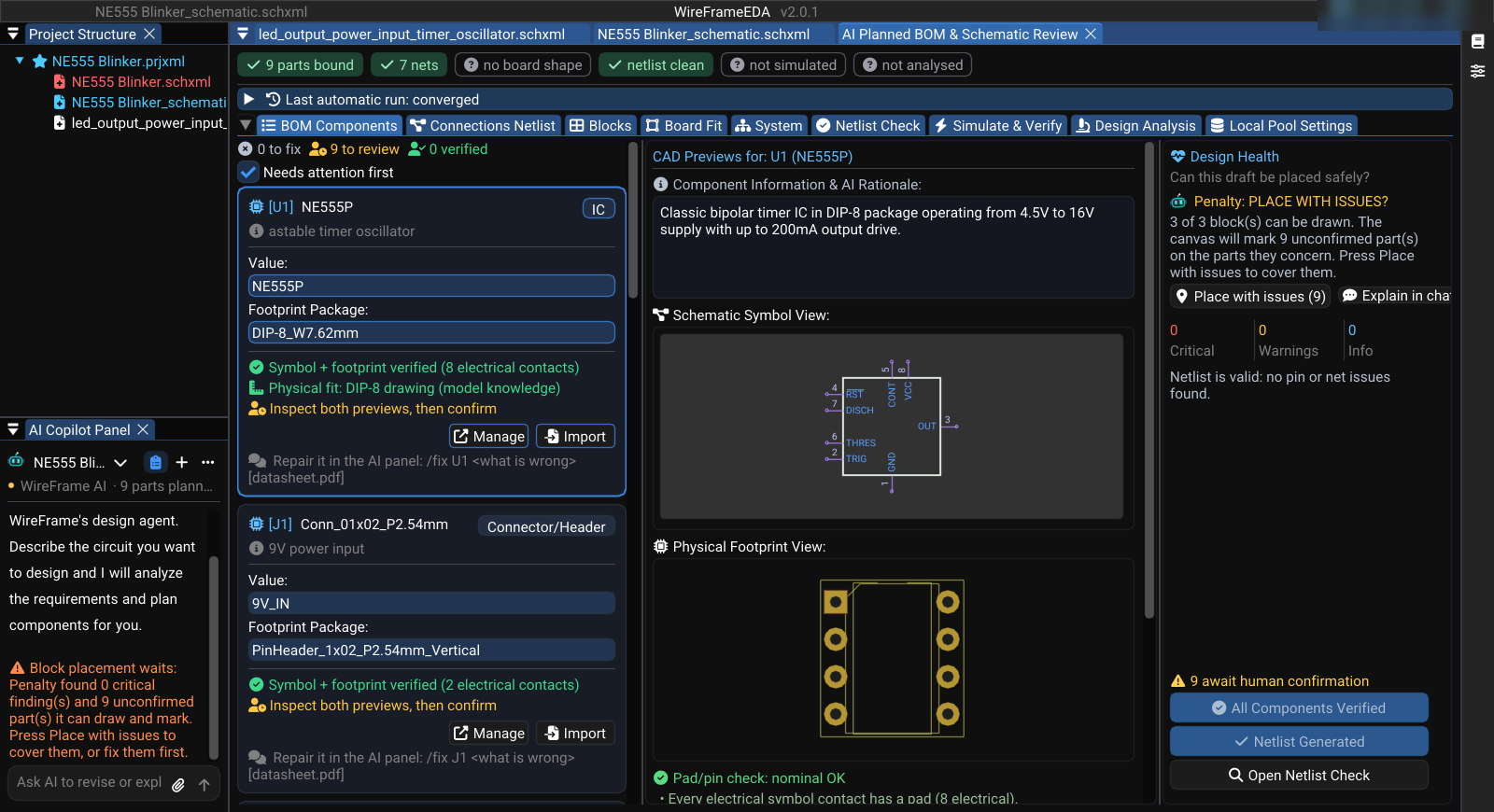
Open the design's Component Review (Design Plan in the AI Copilot panel) and stay on BOM Components. Keep Needs attention first ticked: cards that block the design come to the top.
A card needs work when it shows one of these:
| Card shows | Meaning |
|---|---|
| Not in Pool | No symbol + footprint in your libraries matches this row yet |
| A pin or pad count mismatch | The symbol and the land pattern disagree about the part's contacts |
| Inspect both previews, then confirm | The pair was bound automatically and is waiting for a person |
Each card has three ways forward:
- Create searches WireFrame's published library for this exact part first — most common parts already ship a checked symbol, footprint and 3D model — and opens the Symbol Library Editor only when it is not there.
- Import adds a library file you already have (KiCad, or an Altium library).
/fix <refdes> …in the AI panel asks the Copilot to repair or build the part. The card tells you the exact form to type.
Repair a part with /fix#
Type the reference designator and what is wrong, in plain words:
/fix U1 the symbol's pins have no names, take them from the datasheet
/fix D1 use a 3 mm LED instead of 5 mm
/fix J1 this is a 2-pin 2.54 mm header, not a screw terminal
What happens next:
- Evidence. WireFrame looks for the part's datasheet: a file you attached, then the published index, then the web. Only pages WireFrame downloads and reads itself count as evidence.
- Plan. The Copilot proposes a repair — the pin table, the package, the land pattern — and WireFrame validates it against that evidence and its package rules before showing it to you.
- Review. The plan appears in the chat with Apply, Attach datasheet... and Cancel. Nothing has changed yet.
- Apply. WireFrame writes the symbol and footprint to the project library, opens the editor and replays the repair so you can watch the pins and pads being drawn, then re-checks the card.
Attach the manufacturer's PDF with Attach datasheet... whenever the part is not a common one: a clean datasheet is the best evidence there is.
Build every missing part at once#
When several parts have no symbol or footprint, ask for it in the chat — for example "fix the parts that cannot be used yet". Copilot answers Running AI Verify & Fix on the parts that cannot be used yet and builds a symbol and footprint for each, then re-checks the findings against the parts it produced. Each result still needs the inspection and confirmation below.
Inspect the result#
After a repair, select Manage on the card to open the part in the library editors. Check, against the datasheet:
Symbol
- the pin count, and every pin number against its name;
- power, ground, no-connect and exposed-pad pins;
- the reference prefix and the default footprint.
Footprint
- pad count, pitch, pad size and drill;
- pin 1 position and the package outline;
- courtyard, silkscreen and fabrication layers.
Save corrections in the editor; Component Review re-checks the card on its own.
Confirm the part#
A repaired or automatically bound part is not trusted until a person confirms it. Select the card, look at the Schematic Symbol View and Physical Footprint View, then press Confirm this component. When several rows share the same symbol and footprint, one confirmation covers all of them — the button says how many.
What WireFrame learns about a part (its electrical contract) belongs to the part, not to one project, and is reused on every board:
Troubleshooting#
| Message or result | What to do |
|---|---|
| "Which part? Name its refdes" | Start the request with the designator: /fix U4 … |
| "… is not a row in this design" | Use one of the designators the message lists |
| "Still working on the last library request" | Wait for the running repair to finish |
| The plan is refused or keeps the wrong package | Attach the exact manufacturer datasheet and ask again |
| No writable project library | Save the project first; repaired parts go into its lib_<project> folder |
| The part is found but still shows a mismatch | Open Manage, compare symbol pins with footprint pads, save, and let the card re-check |
Release checklist#
- Every card is Confirmed for netlist, by a person.
- Pin names and numbers match the datasheet of the exact part number.
- Package, pitch and pad sizes match the manufacturer's land pattern.
- Pin 1 and polarity marks agree between symbol, footprint and silkscreen.