AI Copilot
AI Design Agent
On this page
Use AI Design Agent to research a circuit request, clarify requirements, and prepare a BOM, connection plan, and functional blocks for review.
Prepare the request#
Include:
- input and output voltage;
- maximum current or load;
- interfaces and connector requirements;
- size, package, or assembly constraints;
- environmental or safety constraints;
- preferred or prohibited parts;
- the result you expect from simulation.
Avoid requests such as “make a power supply” without ratings. Copilot can ask questions, but it cannot infer product requirements that have not been decided.
Research and clarification#
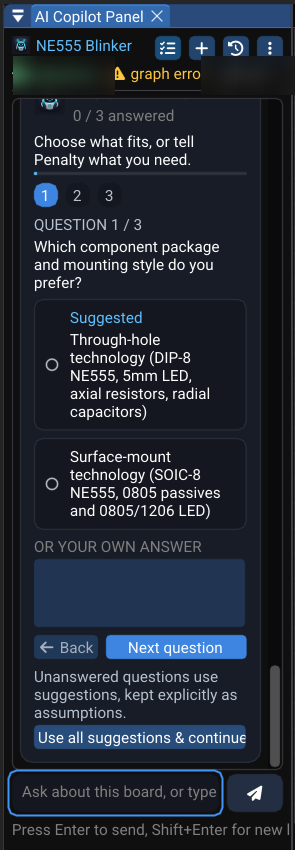
After receiving the request, review the research summary (Module Analysis) and answer the clarification questions shown under it, one at a time. Use Next question and Back to move between them; on the last question the button becomes Start designing. Use Use all suggestions & continue only for exploratory work.
Each question offers one or more choices — the one marked Suggested is the Copilot's default — plus an Or your own answer field. Start designing submits your answers. Use all suggestions & continue fills every unanswered question with its suggestion and keeps each one listed as an explicit assumption; it is not an approval of production requirements.
Review BOM components#
For each physical component:
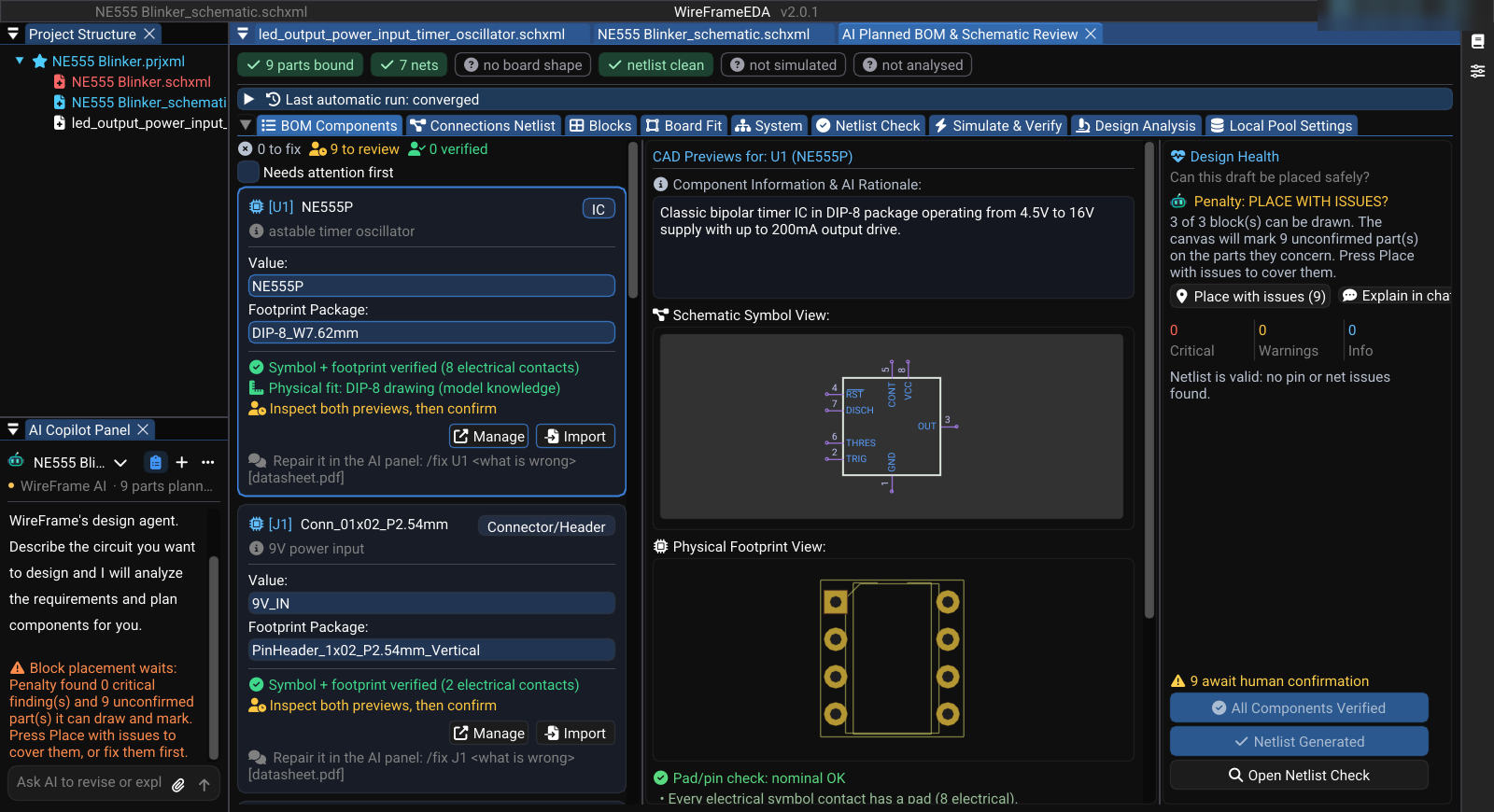
- Confirm the exact part name and value.
- Confirm the package.
- Read the role and origin indicator.
- Resolve Not in Pool, partial matches, and pin-count mismatches.
- Use Create, Import, or Manage on the card — or repair the part in the AI panel with
/fix <refdes> <what is wrong>(the card shows the exact form).
Left-click a component card, its type tag, or one of its actions to make that item the active preview. The action row changes with library state:
| Component state | Actions | Result |
|---|---|---|
| Found in Pool | Manage, Import | Open the matched library editors, or replace the assignment from a library file |
| Not in Pool | Create, Import | Search the published library and otherwise start a new symbol in Symbol Library Editor, or load a library file |
To repair or build a part with AI, type /fix <refdes> <what is wrong> [file.pdf] in the AI panel — see Fix or Create a Component.
Editing Value or Footprint Package invalidates derived validation, simulation, and placement results. Let the pool re-check finish, then repeat the relevant review tabs.
An item marked auto was added by WireFrame support rules. Keep it only when the design actually needs it.
Review connections and netlist checks#
Open Connections Netlist to inspect named nets and referenced pins. Then open Netlist Check and resolve critical findings before placement or simulation.
Pay particular attention to:
- missing or nonexistent pins;
- symbol pin count versus footprint pad count;
- power and ground connectivity;
- single-ended nets that should have more than one connection;
- inconsistent net names.
Use Fix with AI only after reading the proposed correction. Re-run the check afterward.
Fix with AI appears when critical deterministic findings remain and is limited to three attempts for that review cycle. It sends the listed critical issues back for regeneration; it does not replace ERC.
Generate functional blocks#
Open Blocks and select Generate Blocks. Review the membership and purpose of each power, protection, control, interface, oscillator, or load block. Use Send Blocks to Chat when you want Copilot to discuss or refine them.
Verify before applying#
- Resolve library issues.
- Run Netlist Check.
- Run Simulate & Verify when the circuit is supported.
- Review Design Analysis.
- Add the approved design or block to the active project.
- Run schematic ERC after placement.
Revise the design#
Ask for one bounded change at a time, such as:
- “Replace the regulator with a 1 A part in SOIC-8.”
- “Add reverse-polarity protection before the input filter.”
- “Correct U2 pin 5 to
ENand regenerate the affected connection.”
After revision, previous validation, simulation, and placement results may be stale. Re-run them.