Libraries
Library Import and Management
On this page
Use the Library Manager to add KiCad libraries, import Altium libraries, choose which parts the Library panel shows, inspect and correct parts, and install parts from WireFrame's online catalog.
Open the Library Manager#
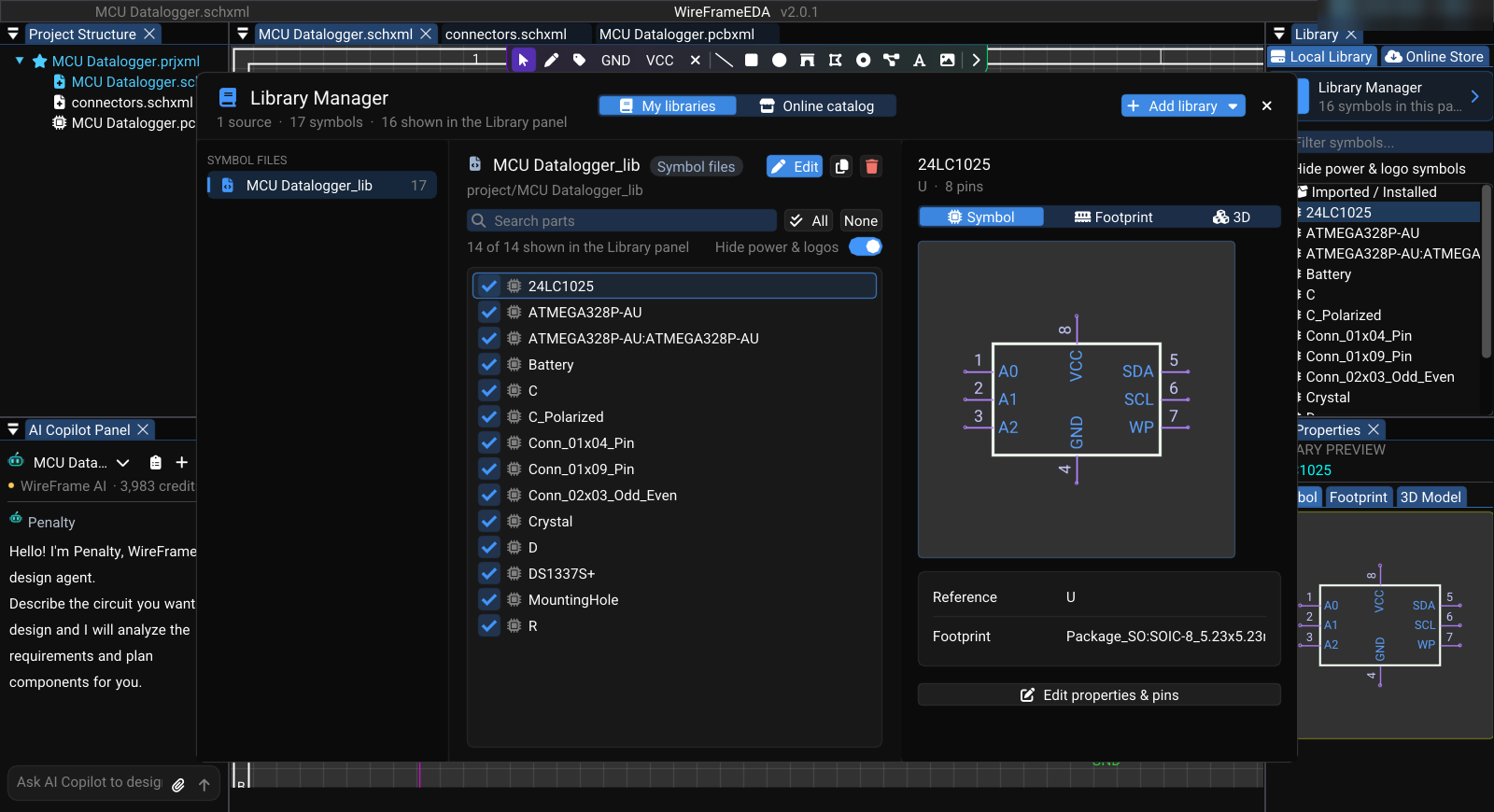
Select View → Local Library Manager, or Manage libraries... at the top of the Library panel. The header shows how many sources and symbols are loaded and how many are shown in the Library panel.
The window has two modes:
- My libraries — the sources you added, their parts, and a preview;
- Online catalog — WireFrame's component store, browsed by category.
Close (Esc) closes the window. Library sources can also be managed from Preferences → Libraries.
Add a library#
Select Add library ▾ (in My libraries) and choose:
| Menu item | Adds |
|---|---|
| Folder of KiCad libraries... | A directory with .kicad_sym, .kicad_mod, or .pretty content. It appears under Folders |
| KiCad symbol file (.kicad_sym)... | One or more symbol files. They appear under Symbol files |
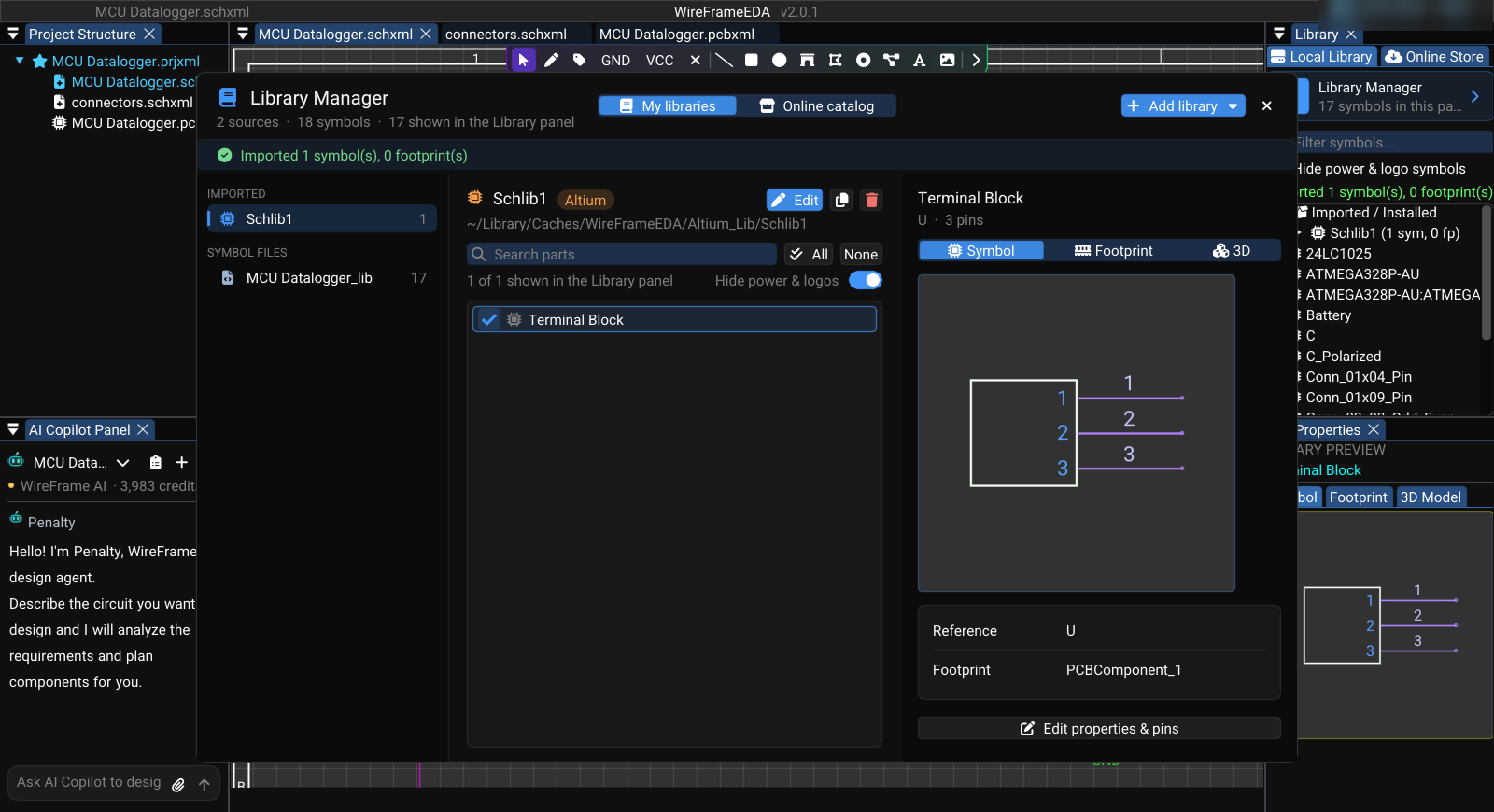
| Altium library (SchLib, PcbLib, IntLib)... | An Altium .SchLib, .PcbLib, .IntLib, or .LibPkg, converted in place. It appears under Imported |
Keep a folder at the same path after adding it. For a single footprint file, use Load Footprints... in the PCB Footprints panel, or add its folder.
Import an Altium library#
- Select Add library ▾ → Altium library (SchLib, PcbLib, IntLib)... and choose the file (
.SchLib,.PcbLib,.IntLib, or.LibPkg). - Wait while the window shows Converting the Altium library....
- Find the result under Imported in the source list.
- Inspect representative symbols, footprints, pad numbering, and 3D model references.
Review converted content
Library conversion is not manufacturing approval. Check the exact part variant, pin mapping, pad dimensions, footprint orientation, and model paths before using an imported component.
Review converted content
Library conversion is not manufacturing approval. Check the exact part variant, pin mapping, pad dimensions, footprint orientation, and model paths before using an imported component.
Choose what the Library panel shows#
Select a source on the left to list its parts.
- Search parts filters the list; Up / Down move through it while you type.
- The tick beside a part shows or hides it in the Library panel. All and None show or hide every listed part; Hide power & logos hides power symbols and logos. Select several parts (Shift / Ctrl click) and press Space to show or hide them together.
- The line under the search reads n of m shown in the Library panel.
Hiding a part does not delete it — it only keeps the Library panel short.
Inspect or remove a source#
Hover a source for its full path. The buttons beside the source name Copy path and Remove from library; the same actions are in its right-click menu. Removing asks for confirmation — Remove "…" from the library? Its files stay on disk.
Removing a source does not repair placed components whose definitions can no longer be resolved. Archive required project libraries with the project before moving it to another machine.
Review and edit a part#
Select a part to preview it on the right, with Symbol, Footprint, and 3D tabs and its Reference and Footprint below.
| Tab | Review | Actions |
|---|---|---|
| Symbol | Shape, pin numbers and names, reference prefix, default footprint | Edit properties & pins opens Edit symbol: Name, Reference prefix, Default footprint, and the Pins table (Name, Type) with Add pin; Edit geometry in the Symbol Editor; Save, Save as..., or Cancel |
| Footprint | Pad numbers, pad geometry, body outline | Edit in the Footprint Editor; Link a footprint file... links another footprint — saved into the symbol file and applied to this part on the open schematic |
| 3D | Package model, orientation, offset, scale | Edit 3D model & alignment |
Cancel discards pending edits. Saving a renamed symbol or linking a footprint changes how the part is resolved later, so confirm the symbol-to-footprint mapping before closing the manager.
To work on a whole library — many parts at once, or with the Copilot's library commands such as /review all and /deepsearch all — select ✎ Edit (or double-click a part) to open it in the Library Workspace. How WireFrame chooses a library part for a BOM row is explained in How a Part Is Found.
Install parts from the online catalog#
Switch to Online catalog:
- Pick All parts or a category on the left.
- Search with Search name, value, description; Installed and 3D narrow the list to installed parts or parts that ship a 3D model.
- Select parts (Shift / Ctrl click) and choose Install selected (n), or Install all (n) for every part listed that is not installed yet (after a confirmation).
Each installed part is downloaded with its symbol, footprint, and 3D model and added to My libraries → Imported. The Online Store tab of the Library panel offers the same catalog next to the schematic, with Install and Drag to schematic on each part.
Component Library panel#
The docked Library panel is separate from the Library Manager. In its Local Library tab:
- Filter... searches the shown parts; Hide Power/Logo hides power symbols and logos;
- drag a symbol onto the schematic canvas to place it;
- right-click a converted library for Remove Library, a folder for Remove Folder, or a symbol for Remove Symbol;
- select several symbols with Ctrl or Shift, then use Remove Selected (or Clear to drop the selection).
What is not supported#
WireFrame does not import an entire Altium project or Eagle .lbr, .sch, or .brd files. KiCad projects are imported with File → Import → KiCad Project — see Projects and Files.
After any import#
- confirm symbols appear in a schematic;
- confirm footprints appear in a PCB;
- link the intended footprint to each symbol;
- check pin and pad counts;
- inspect 3D model paths;
- run ERC, DRC, and DFM on a test project before production use.