AI Copilot
AI Copilot
On this page
AI Copilot helps turn a circuit request into a reviewable design, inspect an existing schematic or PCB, organize functional blocks, generate missing library items, and explain simulation results. It assists the workflow; it does not replace datasheet review, ERC, DRC, DFM, or engineering approval.
Configure AI access#
Nothing to configure. Sign in with a Pro or Max plan, open View → AI Copilot Chat (Ctrl+Space) and start: the AI Copilot runs on WireFrame AI, paid from your plan's AI credit, and WireFrame AI picks the model for each task. The top of the panel shows WireFrame AI and the credit left; Preferences → AI Assistant (or the ⋮ menu of the panel → AI settings...) shows the same.
The credit, the plans and what is sent where are on AI Credit and Your Data.
Start a focused session#
Use the + button in the Copilot panel to start a session and the history button to reopen earlier sessions of the project. Describe one goal at a time and include measurable requirements where possible.
Good starting requests include:
- “Design a 12 V to 5 V buck supply for a 1 A load.”
- “Review the USB-C power input and protection block on this schematic.”
- “Explain the failed
VOUTripple assertion from the latest simulation.” - “Group this sheet into power, control, and interface blocks.”
Long sessions are summarized and relevant project facts can be recalled later. Still restate safety-critical values before asking Copilot to modify or verify a design.
Design workflow#
- Describe the circuit and constraints.
- Review the research summary.
- Answer the clarifying questions, or select Use all suggestions & continue only when the suggested answers are acceptable.
- Review BOM components, connections, and functional blocks.
- Resolve missing symbols, footprints, and pin-count mismatches.
- Run Netlist Check, simulation, and design analysis.
- Add approved blocks or create the AI project.
- Inspect the schematic before updating a PCB.
Component Review tabs#
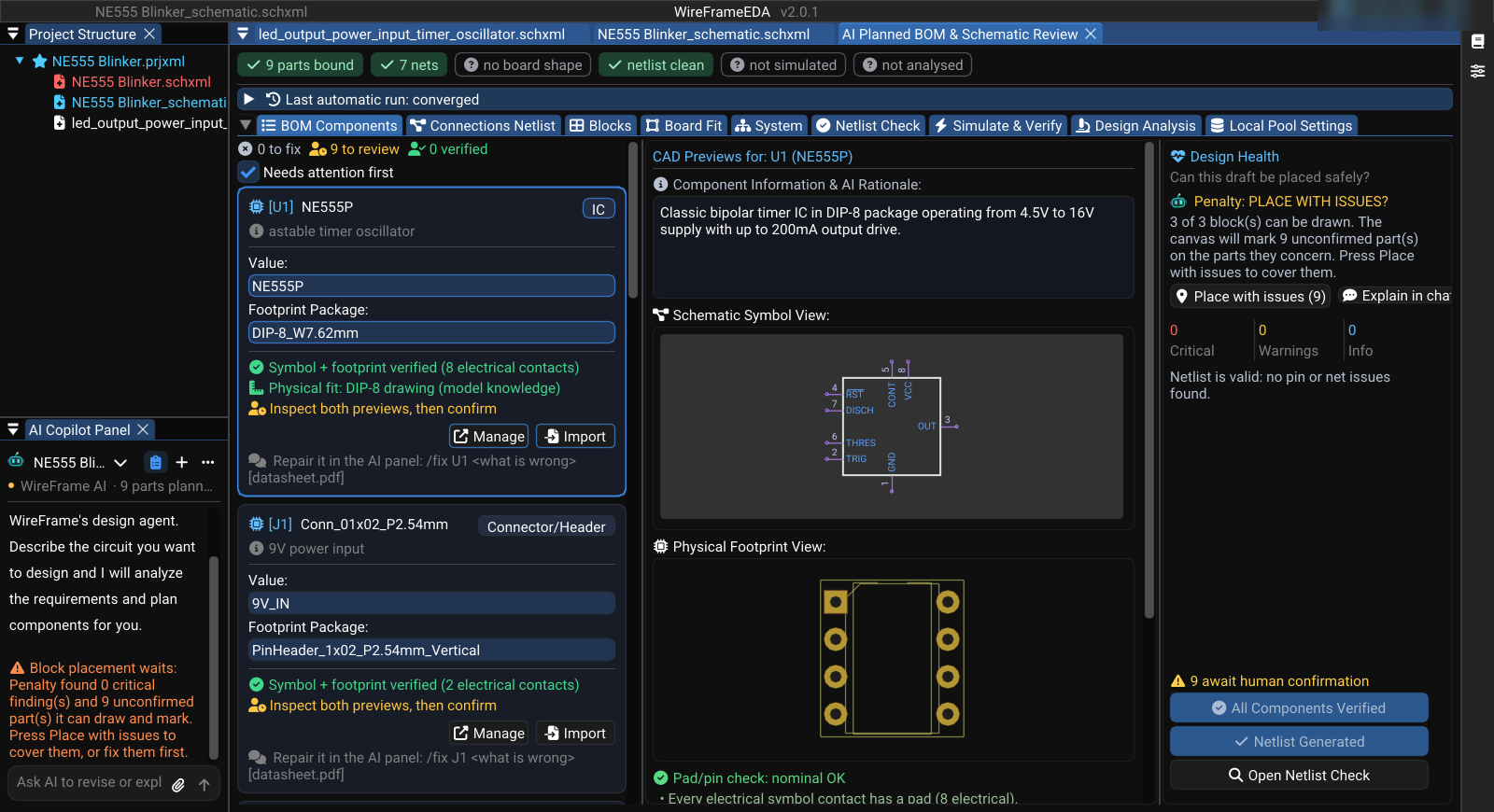
Design Plan in the AI Copilot panel opens the AI Planned BOM & Schematic Review window — called Component Review in this guide. Its status chips at the top summarise the design (parts bound, nets, enclosure, netlist issues, simulation, analysis); the tabs, in order:
| Tab | Use it for |
|---|---|
| BOM Components | Check part number, value, package, origin, and library status |
| Connections Netlist | Review named connections and pin references |
| Blocks | Generate and review functional circuit groups |
| Board Fit | Board shape, enclosure, stacks, and whether the BOM fits — see Enclosure Fit and Multi-Board Products |
| System | Products made of several boards (.asmxml): stacking and board-to-board wiring checks |
| Netlist Check | Find pin, connectivity, and consistency problems |
| Simulate & Verify | Readiness (components, library match, GND, power source, nets) and Run Simulation for the proposed design |
| Design Analysis | Review design-level findings |
| Local Pool Settings | Add library sources and review generated contracts |
Safety and privacy#
- A request carries your message and the part of the design it is about (and an attached datasheet's content). It goes to WireFrame AI — see what is sent, and where. Your projects stay on your computer.
- Review every proposed change before applying it.
- Treat generated symbols and footprints as unverified until checked against the datasheet.
- Limit each request to the relevant sheet, block, or signal.
- Re-run deterministic checks after every accepted change.
- Stop and review when part numbers, package variants, ratings, or pinouts are ambiguous.