Schematic
Schematic Templates & Title Block
On this page
WireFrame includes a template system for schematic sheets — customizable page borders, title blocks, revision fields, and company branding. Templates ensure professional, consistent documentation across all your schematic pages.
Title Block#
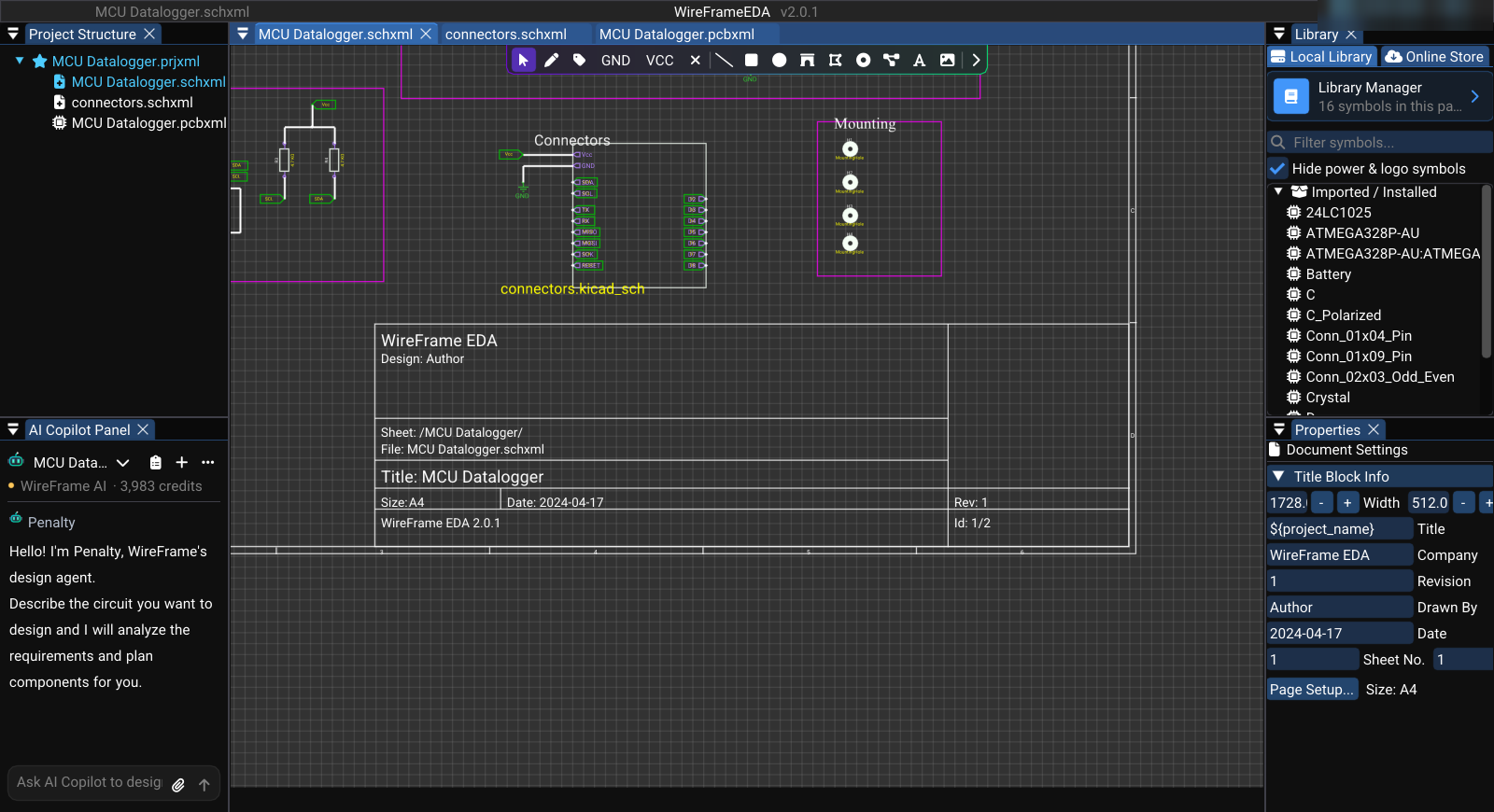
Every schematic sheet has a title block in the lower-right corner. It displays metadata from the page settings:

Editing the title block#
- Click on empty canvas (deselect everything).
- The Properties panel shows Document Settings → Title Block Info:
| Field | Description | Example |
|---|---|---|
| Width / Height | Size of the title block | |
| Title | Design title | "Power Supply Rev B" |
| Company | Organization name | "WireFrame Labs" |
| Revision | Version identifier | "1.2" |
| Date | Design date | "2026-03-23" |
| Drawn By | Author name | "A. Engineer" |
| Sheet No. / Total | Current / total sheets | "1" / "3" |
Changes in the Properties panel apply immediately — the title block updates on the canvas. Size shows the paper size; Page Setup... opens the Page Settings dialog for paper size, border colour, comments, and logo.
Page Setup#
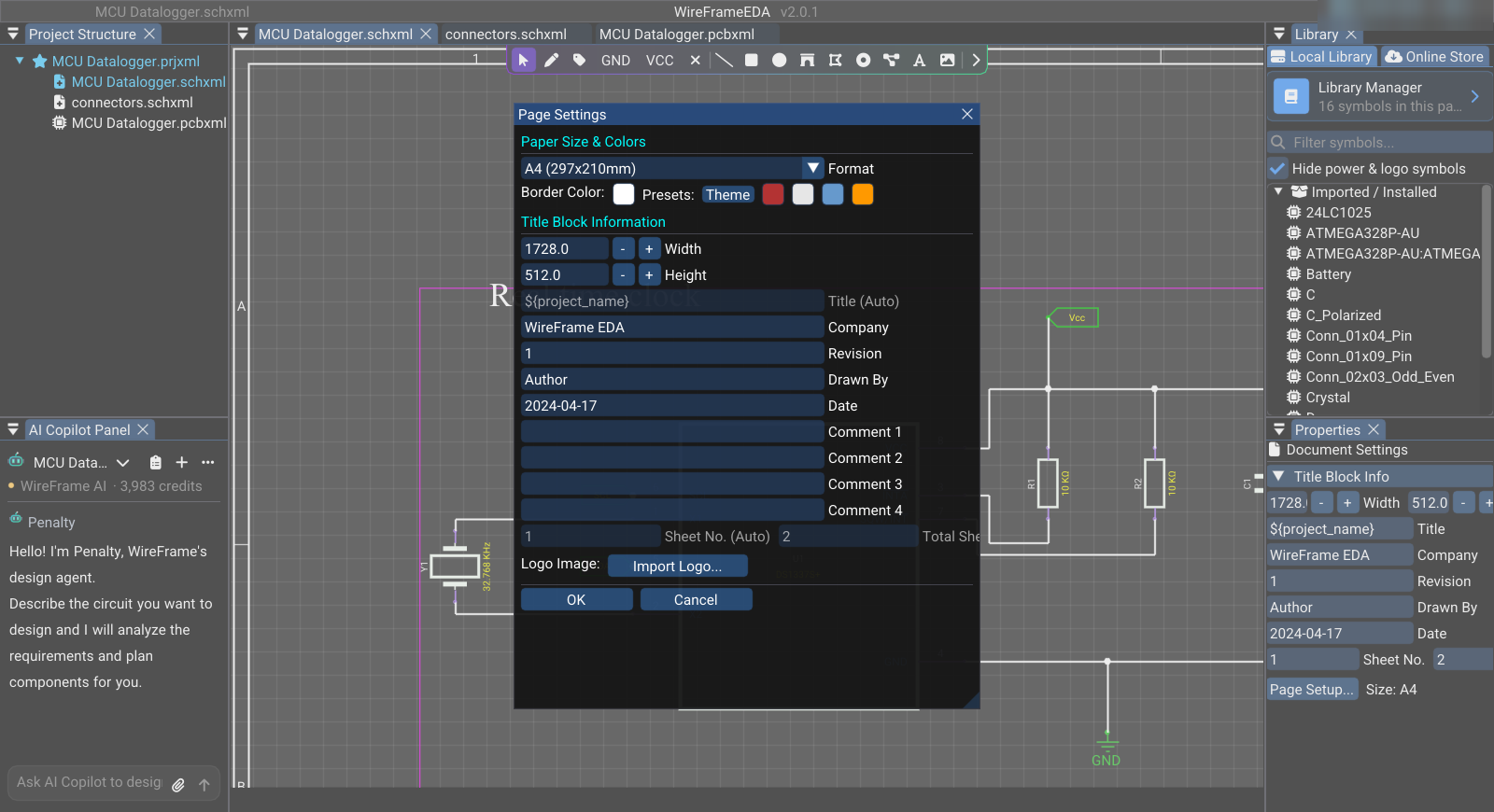
Open File → Page Settings... or Page Setup... in the Properties panel. The Page Settings dialog has two parts:
- Paper Size & Colors — Format (A4 (297x210mm), A3 (420x297mm), A2 (594x420mm), or Custom with Width / Height), Border Color with the Presets red, white, cyan, and orange.
- Title Block Information — Width and Height of the block, Title (Auto), Company, Revision, Drawn By, Date, Comment 1–Comment 4, and Sheet No. (Auto) / Total Sheets (Auto). In a project, the sheet number and total come from the order of the schematics in the project.
- Logo Image — Import Logo... for PNG, JPG, JPEG, or BMP artwork; Clear Logo removes it.
Select OK to apply and save, or Cancel to close without changes.
Paper size#
WireFrame supports standard paper sizes and custom dimensions:
| Size | Dimensions |
|---|---|
| A4 | 297 × 210 mm |
| A3 | 420 × 297 mm |
| A2 | 594 × 420 mm |
| Custom | User-defined width × height |
Choose the paper size under Format in the Page Settings dialog.
Grid settings#
The dot grid on the schematic canvas helps with alignment:
- Components and wires snap to the grid.
- Preferences → Grid & Snap sets Show grid, Crosshair at cursor, Snap to grid, and the Grid step (the visible grid and the snap grid are one value). Hold Alt to place something off-grid without turning snapping off; Shift+G shows or hides the grid.
Sheet template behavior#
WireFrame constructs the visual elements of the schematic page from its settings:
- Page border — drawn from the paper size dimensions with margins.
- Title block frame — structured table with labeled cells.
- Comments — up to four comment lines in the title block for notes such as revision history.
The template is automatically rendered as part of the schematic canvas and included in PDF exports.
Tips#
Consistent documentation
Fill in the title block fields for every schematic sheet in your project. This information appears in PDF exports and helps team members identify documents.
Title block in exports
When you select File → Export → Export Schematic to PDF, the title block is included with the sheet. Review the exported PDF for readable text, borders, and revision data.
See Also#
- Properties & Attributes — editing page settings in the Properties panel.
- Fabrication & Export — PDF export includes the title block.